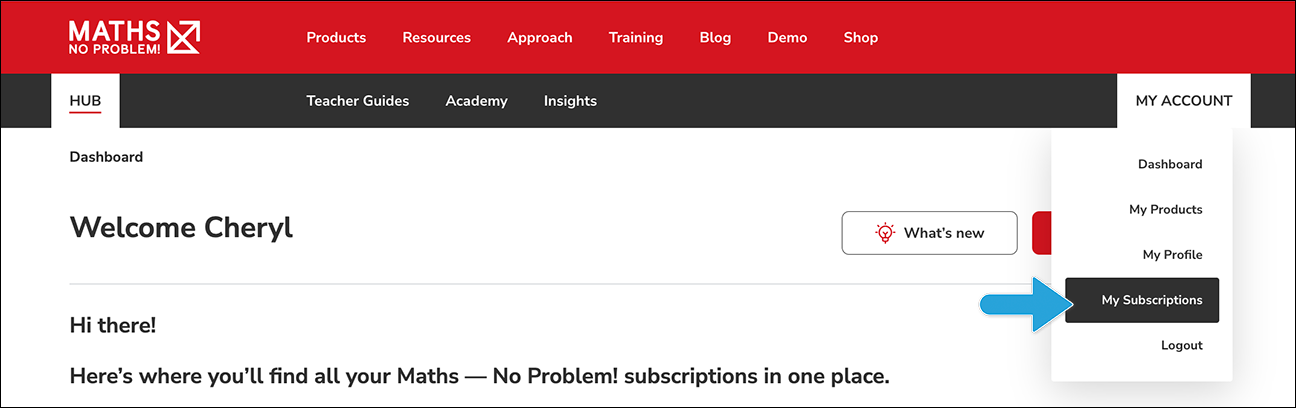
- Firstly, log into the Hub. Then, go to the My Account dropdown menu on the right hand side of the page and click My Subscriptions.
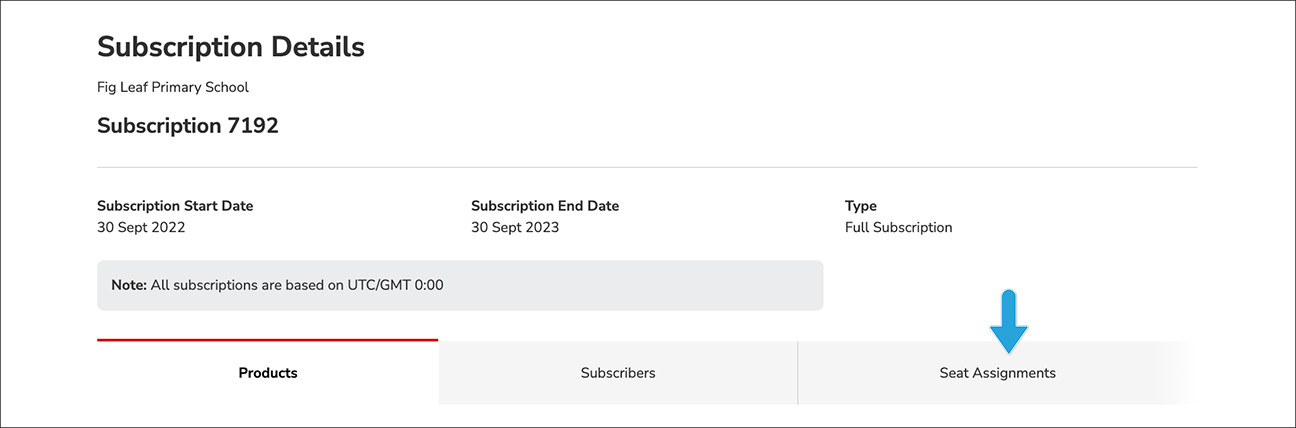
- Click the relevant subscription. Then, click the Seat Assignments tab.
- Check the box next to each subscriber you’d like to give product access to. You can click Select All if you would like all subscribers to have access to a product.
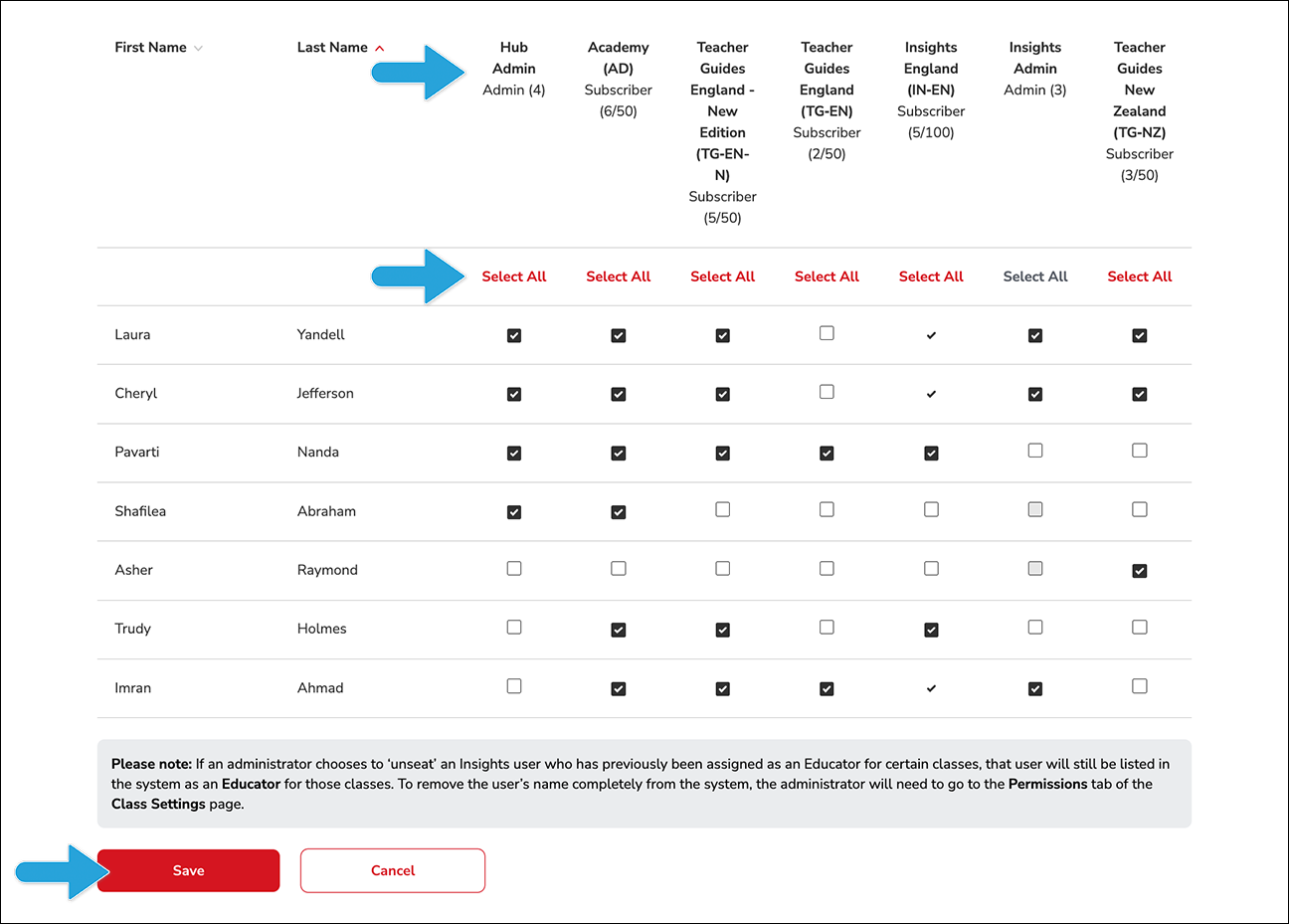 You may also assign subscribers to the role of Hub administrator in this tab. Assigning an individual to the role of Hub administrator will not count towards your product seats unless you also assign them to a product.
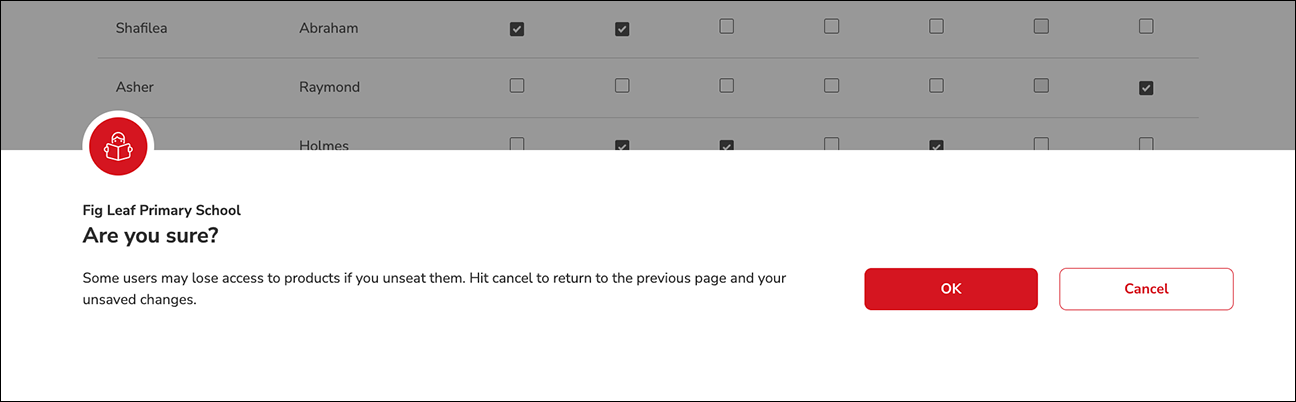
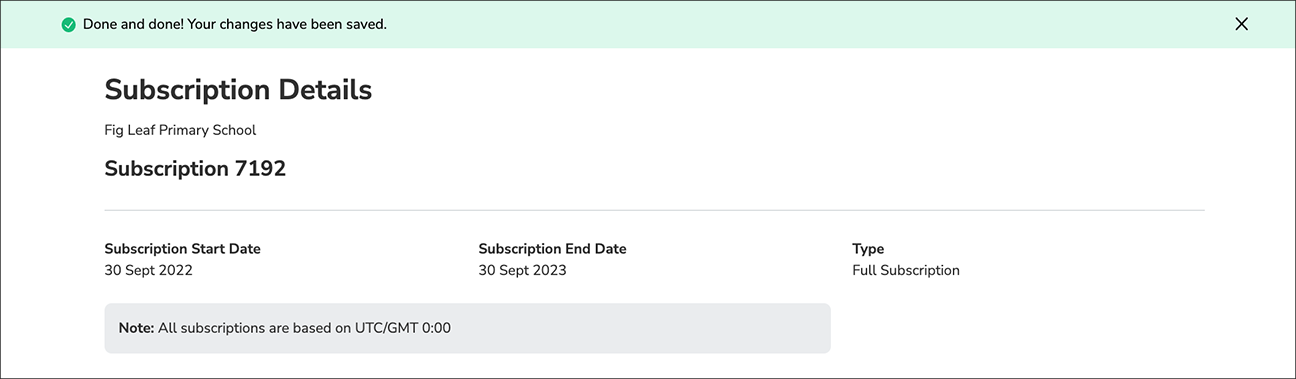
 - When you have completed assigning seats, select the Save Changes button.
English
![mathsnoproblem-1.png]](https://knowledge.mathsnoproblem.com/hs-fs/hubfs/mathsnoproblem-1.png?height=50&name=mathsnoproblem-1.png)