![mathsnoproblem-1.png]](https://knowledge.mathsnoproblem.com/hs-fs/hubfs/mathsnoproblem-1.png?height=50&name=mathsnoproblem-1.png)
Formatting your file
Before uploading your CSV file, please double check to make sure it follows the correct format:
- The first five columns are mandatory and must be completed:
- Pupil ID
- Last Name
- First Name
- Date of Birth
- Gender
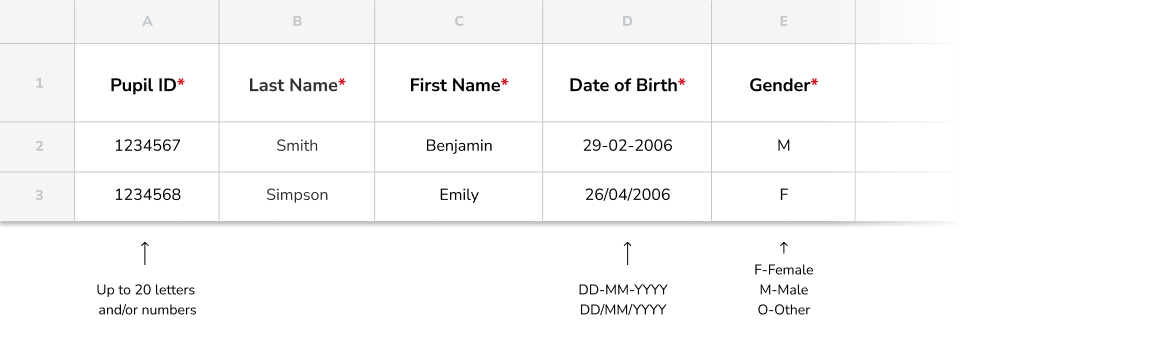
- The remaining columns are optional, however if they're filled in, the proper format must be followed:
Note: Even if you choose to leave the optional columns blank, please don't delete the column headers. These column headers — Year Group, Class, EAL, SEN, PP, FSM — must be included in the CSV file exactly as shown below or the upload will fail.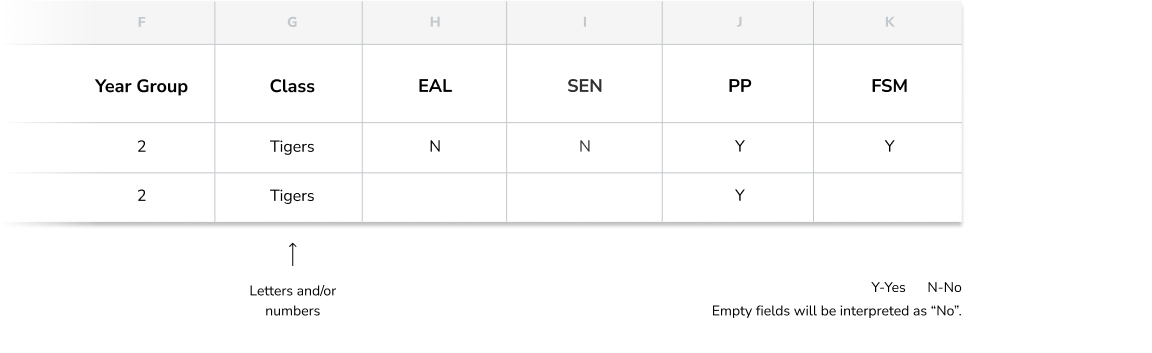
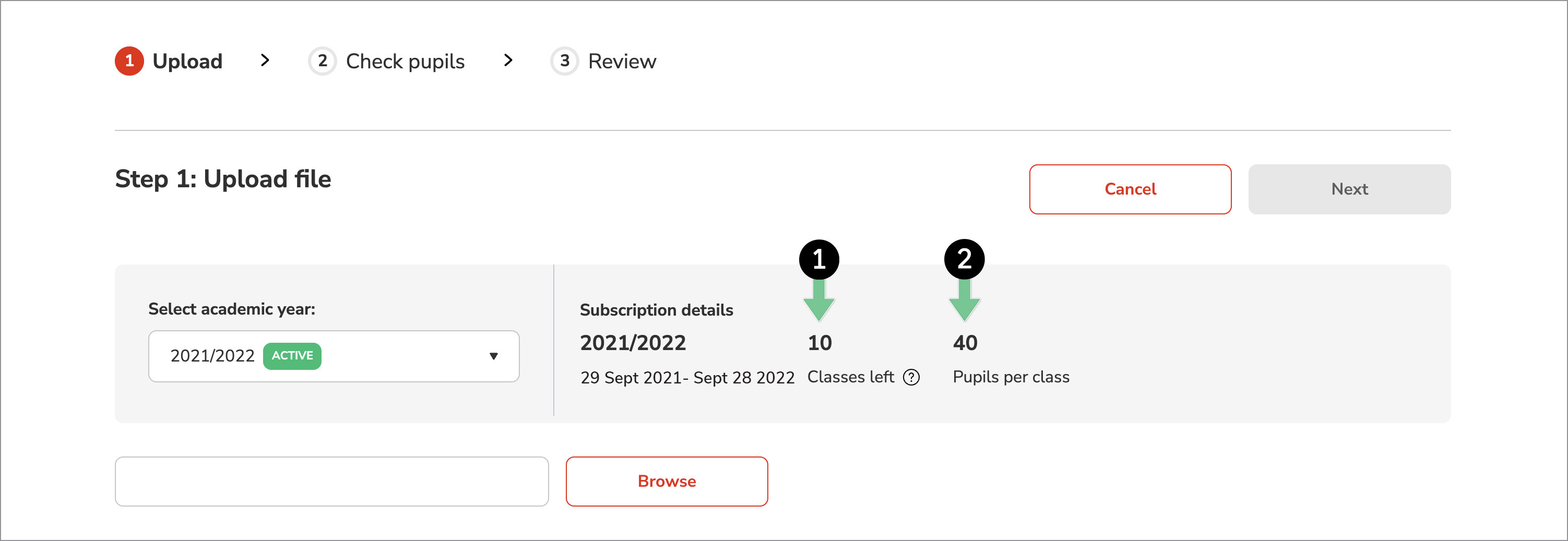
- If classes are included in your file, please check them against the number of classes your subscription allows. To do this, select the appropriate academic year. You’ll see information about your subscription, including how many classes you’re able to upload (1) and how many pupils are allowed per class (2).
Note: If you add a class name to a pupil record, you must also assign a year group or the upload will fail. Similarly, if you add a year group, you must also add a class name. In other words, both the Class and Year Group fields must be filled in or both must be empty.